
Automated illustrated user guide
This guide documents the main QForm Builder workflow with screenshots produced by Playwright from a deterministic fixture. These images are not visual-regression baselines: they are the illustrations published by VitePress.
Reproducible screenshots
Run bun run docs:screenshots after a visible UI change. The scenario regenerates both French and English images and refreshes the SHA-256 manifest. Existing images remain untouched until both Playwright journeys complete successfully.
1. Understand the interface
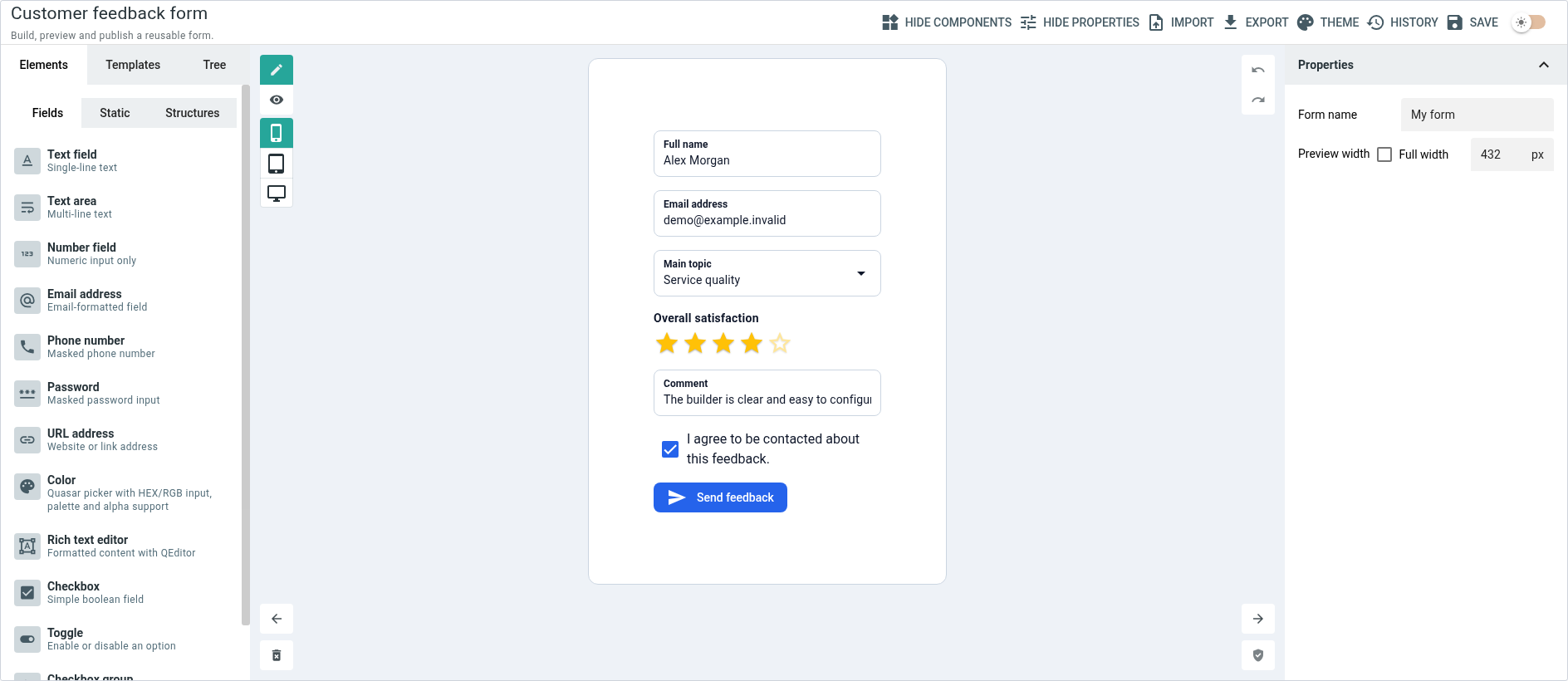
The builder is organized around three areas: the catalog on the left, the central canvas and the configuration drawer on the right. The top toolbar exposes import, export, theme, history and save actions.
2. Select and configure a field
In Edit mode, select a field on the canvas. The right drawer immediately displays the active field properties: technical identity, label, data, responsive layout and validation.
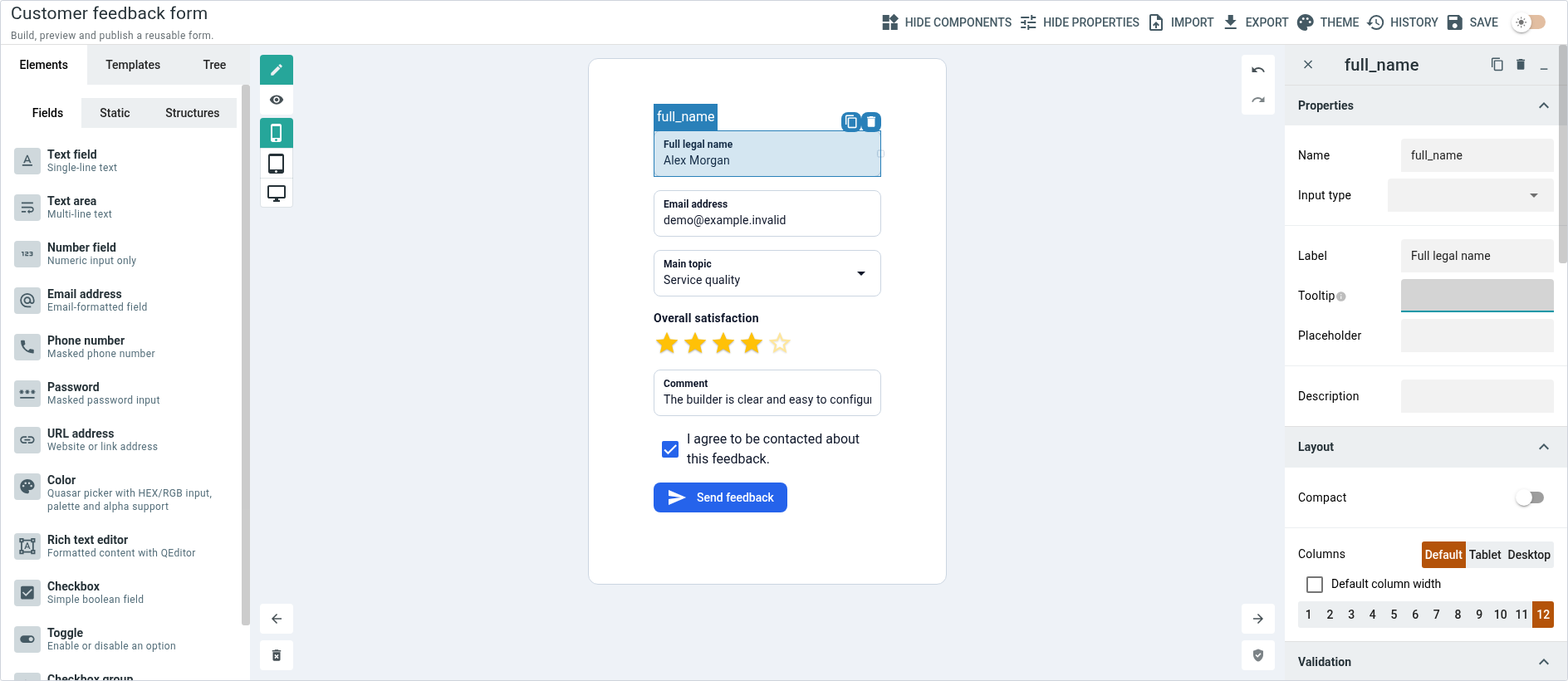
Runtime interactions from Quasar controls are blocked while editing. Clicking a QSelect, QInput, checkbox or slider therefore selects the component without changing its value.
3. Test the form in preview mode
Switch to Preview to use the controls as an end user. The Information drawer follows the canonical values record, including nested objects and step values.
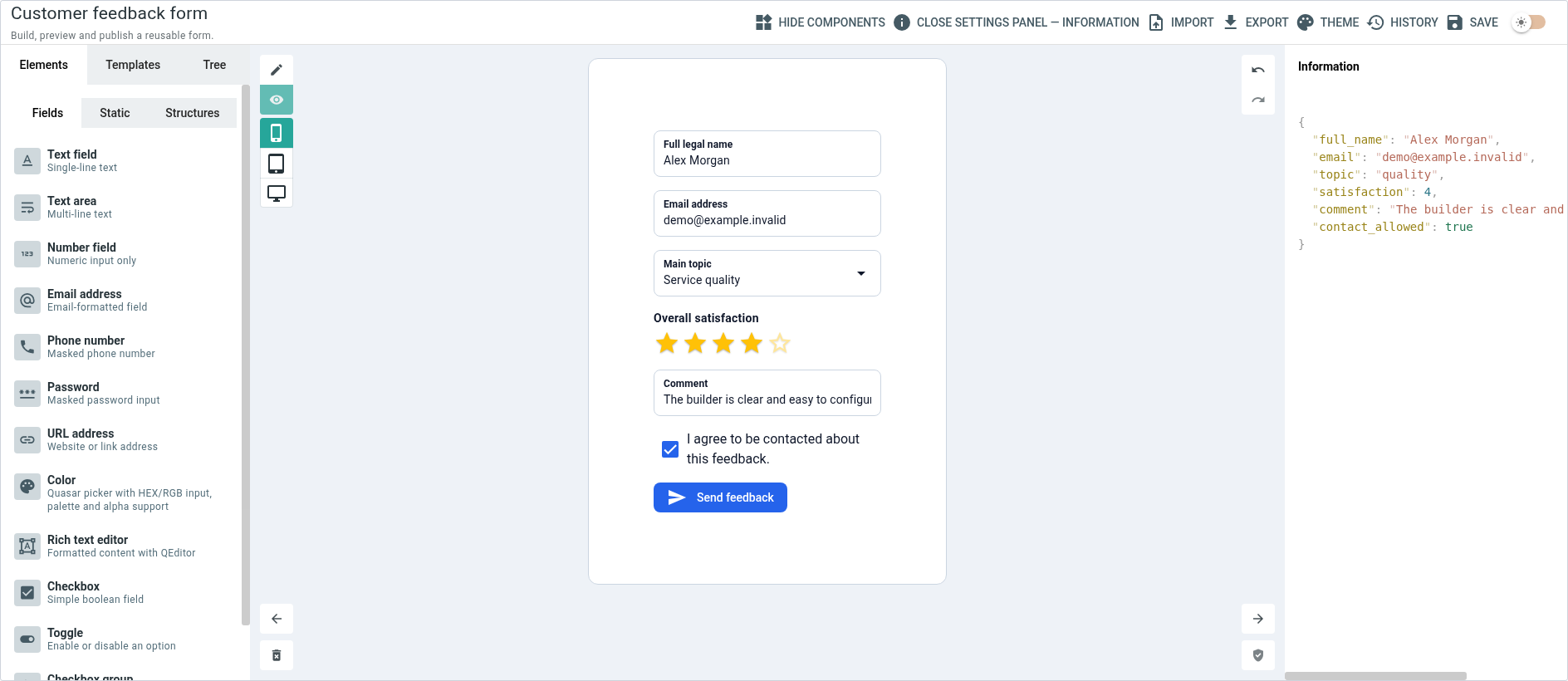
Finalizing a form emits the submit payload without implicitly clearing the data. Starting a new entry remains an explicit host-application action.
4. Customize the Theme Builder
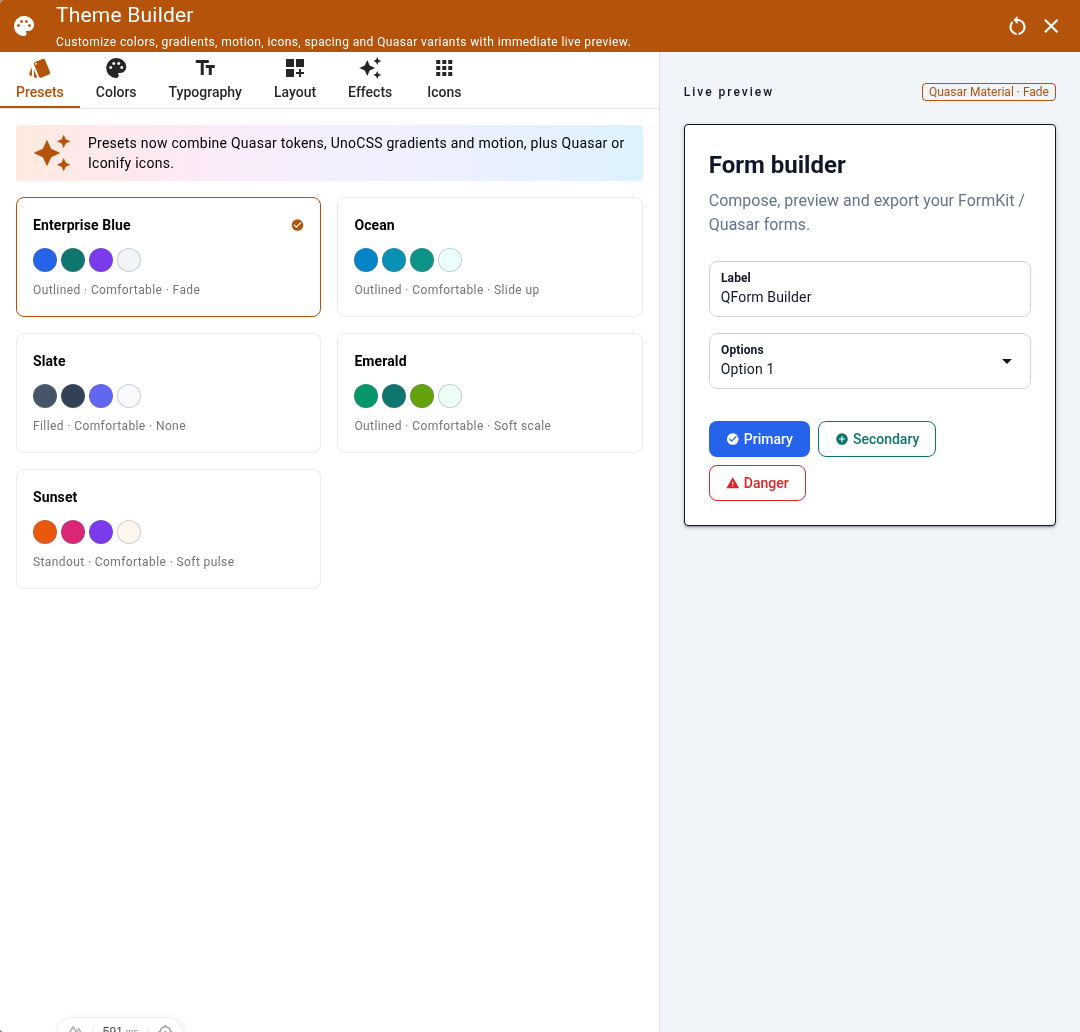
The Theme Builder centralizes presets, colors, typography, layout, effects, motion and Quasar/Iconify icons. Its preview updates before the theme is applied.
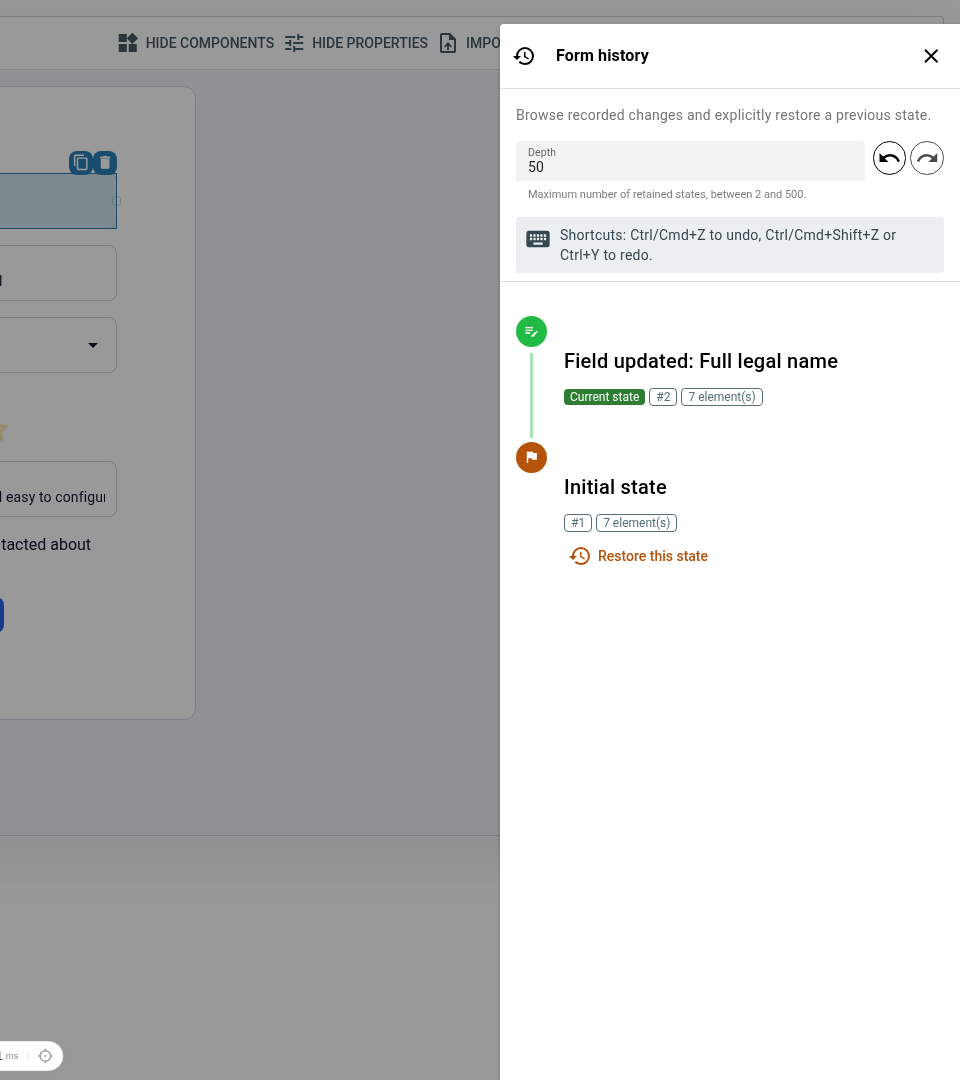
5. Restore a version from visible history
Visible history provides a business-oriented timeline. Undo, redo and explicit restoration remain isolated by builder-id.
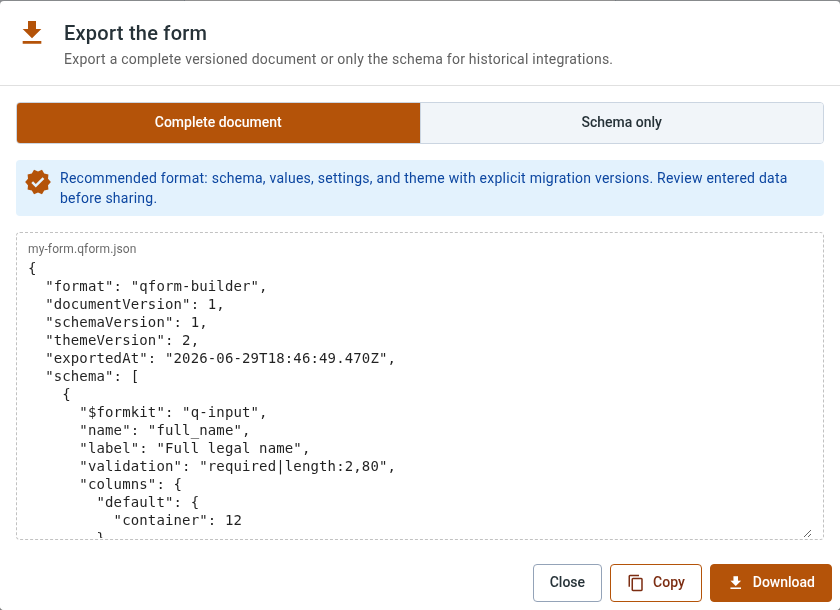
6. Export a versioned document
The recommended export produces a canonical document containing schema, values and settings. Schema-only export remains available for historical integrations.
Regenerate and verify the images
bun run docs:screenshots
bun run docs:screenshots:check
bun run docs:build
The strict check used before a release candidate rejects bootstrap images and requires a real Playwright generation:
bun run docs:screenshots:strictMetadata is stored in docs/public/guide/screenshots/manifest.json: package version, locale, dimensions, byte size and SHA-256 hash for every PNG.
Generation uses an isolated test-results/guide-screenshots-staging directory. Public fr/ and en/ folders are replaced together only after all twelve PNG files are validated. On failure or interruption, previously published images and their manifest remain usable.
Best practices
- use anonymized values and reserved domains such as
example.invalidonly; - keep viewport, color mode and fonts deterministic;
- disable animations, transitions and text carets;
- target elements through stable
data-qform-*attributes; - keep editorial screenshots separate from
toHaveScreenshot()baselines.